The College Bookstore offers even more savings!
 These Extra Savings are off prices shown and will show up at Register on receipt!!
The College Bookstore offers even more savings!
These Extra Savings are off prices shown and will show up at Register on receipt!!

What do Jimmy Lovine (left) and Dr. Dre (right) have in common with Apple?
Jimmy Lovine and Dr. Dre signed on with Apple for an Apple acquisition of Beats Music. Apple now gets Beats Music, a streaming music service, along with the Beats Electronics brand headphones, speakers and cables with their unique look and the co-founders of Beats- Jimmy Lovine, music genius and Dr. Dre, rap superstar who will bring their talents to give Apple a new edge in the world of music.
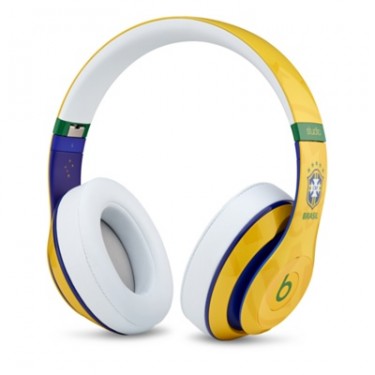 Apple will get a hot new look for their music accessories like the stylish headphones pictured here.
You will love the new music in the link provided below to Beats Music App. the best part about this App is that it is FREE!

Your Apple Desk here at the college in the Bookstore will be carrying the new look in sound.

Apple announced new lower prices on MacBook Air’s with a faster processor!
Our 11″ Models are now:
128GB $849.00
256Gb $1049.00
Our 13″ models are now:
128GB $949.00
256GB $1149
with Middlebury College Bookstore–
-your College ID gets you an additional $50 off those lower prices.



Computer malfunction dance
Hopefully, you never feel the need to do the Computer Malfunction Dance!
Experiencing problems with your Mac can be frustrating, especially during times when it seems you most need your Mac to run at its best. During Mid-Terms or Final Exam week is the least convenient times for problems to occur. Determining whether your Mac’s issue are software or hardware can help direct the path you take to get it fixed.
Software related issues
Hardware related issues
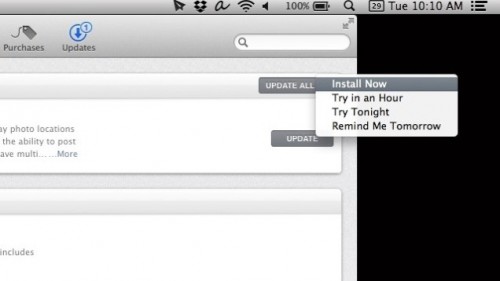
Update Install Reminders
Sometimes strange issues can be tweaked by simply taking the time to update your Mac when you receive those annoying little reminders. These updates are often Designed to alleviate some known software issues.
Apple offers a site that can help you determine which of these issues fit your Mac’s problem. BUT, before attempting to use disk utility to check for disk errors or reinstalling your Mac OS X, you may want to call or email our Apple Authorized technician, information at bottom.
Apple Support- Software Issue or Hardware Issue
If you have determined that your Mac is experiencing Software related issue– the Helpdesk in the Davis Family Library is a useful spot to stop at for free help usually run by students who are ever eager to assist. Warning!– If your Mac is under warranty, your computer can only be opened where the Hard drive, Logic Board and Battery are located by an Apple Authorized Technician or the warranty can be jeopardized.
For Hardware related issues, our Apple Authorized technician, Ark Lemal, is certified to handle all hardware issues with your Mac whether under warranty or not. Ark tries to keep some regular hours here in the College Bookstore for the Middlebury Community convenience which are Monday, Wednesday, and Friday later afternoons but since he is the only Tech on campus who handles all of the non-college owned Mac’s, he asks that you follow the drop off method since he is so busy.
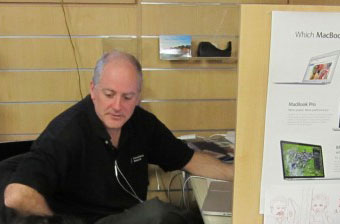
Apple Authorized Technician
Ark can be reached at 802/318-4657 or ark@vtmacit.com
I have collected a few tricks, tips, and shortcuts that you may not know and might enjoy using. I started off with the cool trick that is the most fun to work with for writing and such a timesaver.
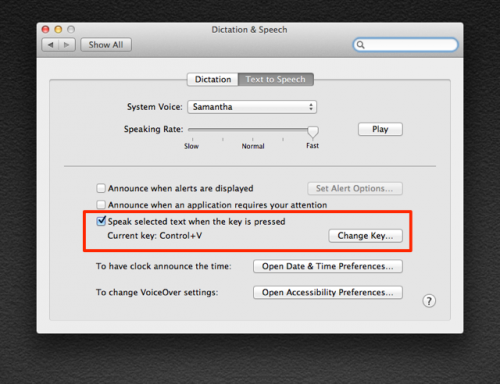
1. A cool way to catch mistakes in your writing or presentations is for your work to be read aloud back to you. You can use your Mac for this with Dictation and Speech.
First, go into your System Preference (the clock gear box) and open Dictation and Speech, choose the Text to Speech tab at the top and make sure to click Speak selected text when key is pressed. You can keep the current selection of keys to press shown below that line or change to a new set of keys. You can have fun choosing the voice and language you want to hear when your Mac reads your work aloud. In the Dictation and Speech selection in System Preference with the tab open for Text to Speech, select the System Voice from the drop down. My personal favorite is Lee, the Australian English voice which I found in the Customize selection on the System Voice drop down.
Highlight the text you want to check for errors and press the two key combo to convert text to speech. After highlighting/Selecting text and pressing the key combo, you can listen for errors. What a great way to find mistakes that you often miss while re-reading. This is also a timesaver tip! Another great tip for when students are working on their finals!
Below is a link to Apple Support for more in-depth instructions.
2. Keyboard Shortcuts–  Option + over (left or right) You ever wonder why you even have these Arrows on your Mac Keyboard? Here are some cool ideas to put these arrows to good use.
Use Option + Up or Down while viewing web sites with many pages. This bring you quickly up and down through the pages, this is especially useful when ordering items at your favorite online store.
Use Command + Shift Up to go to top of page or Command + Shift Down for bottom of page. Also, Shift + Left or Right can bring you to new pages.
Use Option + Left or Right while working with text to advance to next word quickly. Use Control + Command + D while writing to bring up the dictionary and find synonyms for getting the perfect word. This is especially helpful for students when cramming to get the Finals in!
3. Using Quick Time Player to capture clips you are viewing on Mac. If your Quick time Player is not in your Dock you will find it in Finder in Applications and from there you can drag it down to your Dock. First, Right (Secondary) click on the Quick Time Player to get a choice and choose New Screen Recording and a box will pop up. Then, start the clip you want to save on your browser and then click the Record red button on Quick Time Player. Then click on the upper left corner of the clip screen and drag to lower right corner of clip screen and press on start recording on your screen that appears. Don’t forget to stop recording when clip is done by pressing the button on QuickTime player or right clicking on QuickTime in Dock and pressing Stop Recording. Quick keyboard shortcuts using Quick Time Player is Space Bar stops clip in Quick Time, J Rewinds, L Fast Forward, below is a short version of quick keyboard shortcuts I found that dates back to 2010 from Ross W. :
Pause / Play: Tap spacebar.
Pause: Press K.
Play Forward: Press L (multiple taps will increase speed of playback).
Play Reverse: Press J (multiple taps will increase speed of backwards playback).
Slow Motion Forward: Hold K+L together or hold right-arrow.
Slow Motion Reverse: Hold J+K together or hold left-arrow.
View Full Screen: Press Cmd+F together.
I tried these and they still work for the OS X 10.9.2. Try out these quick tips and keyboard shortcuts that may make your work day a little easier and more fun!
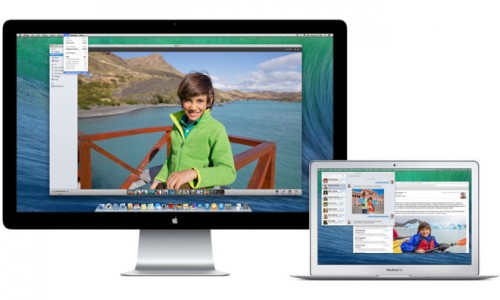

One of the main reasons behind the operating system upgrade to Mavericks was for conserving battery life. Apple has worked out how to conserve battery life by having the new operating system drop processing hogs like Spotlight and Time Machine into the background letting them work “behind the scenes” so to speak in terms of having the CPU more or less overlook or ignore them. You can check this out by going into finder and choosing applications, then opening up your Activity Monitor. There is also an energy saver setting called App Nap which is a background program that searches for apps not needing processing power. There is a tab on the Activity Monitor labeled Energy that allows you to see which apps are hogging up energy. Some people have uninstalled apps that use too much energy needlessly if they deem them “not absolutely necessary” apps.
Mavericks uses Safari to help save energy as well by allowing Safari to more or less control certain energy hogging plug-ins like you-tube clips and ads in the sidebar when a page opens. This improvement helps Safari perform better and faster without shutting off the plug-ins entirely, just delaying them. Using the mouse or trackpad, you can view these flash-based ads or media if you choose to.
These are only a few of the improvements you will notice with the new OS X Mavericks. I was impressed with the energy saving improvements to help conserve battery life.
Below is a link which provides a closer inspection on some Mavericks conserving energy improvements.
One of my personal favorite improvements with the new Mavericks operating system was the new and improved Do Not Disturb feature which is also one of the most popular features with Mavericks. This feature allows you to select Do Not Disturb while you are giving a presentation where you don’t want your iMessages to pop up during the presentation. Simply go into Notifications in System Preference and check the box titled When mirroring to TV’s and projectors. You will also notice that you can select times and apps involved when you want to activate the Do Not Disturb feature or you can select the quick way to activate this feature for 24 hours – Hold down Option Key and click the Notification icon pictured here. You will find it at the very upper right corner on your screen. 
You won’t get any notifications for 24 hours from your apps that send notifications. Below is an Apple Link from Apple Support for a more in-depth look at Notifications.
Of course, there is always hic-ups with newly released operating systems. Many people wait a few months before jumping on board and upgrading to the new operating system. There are new updates and patches to help fix some minor issues.
We are already seeing another update-
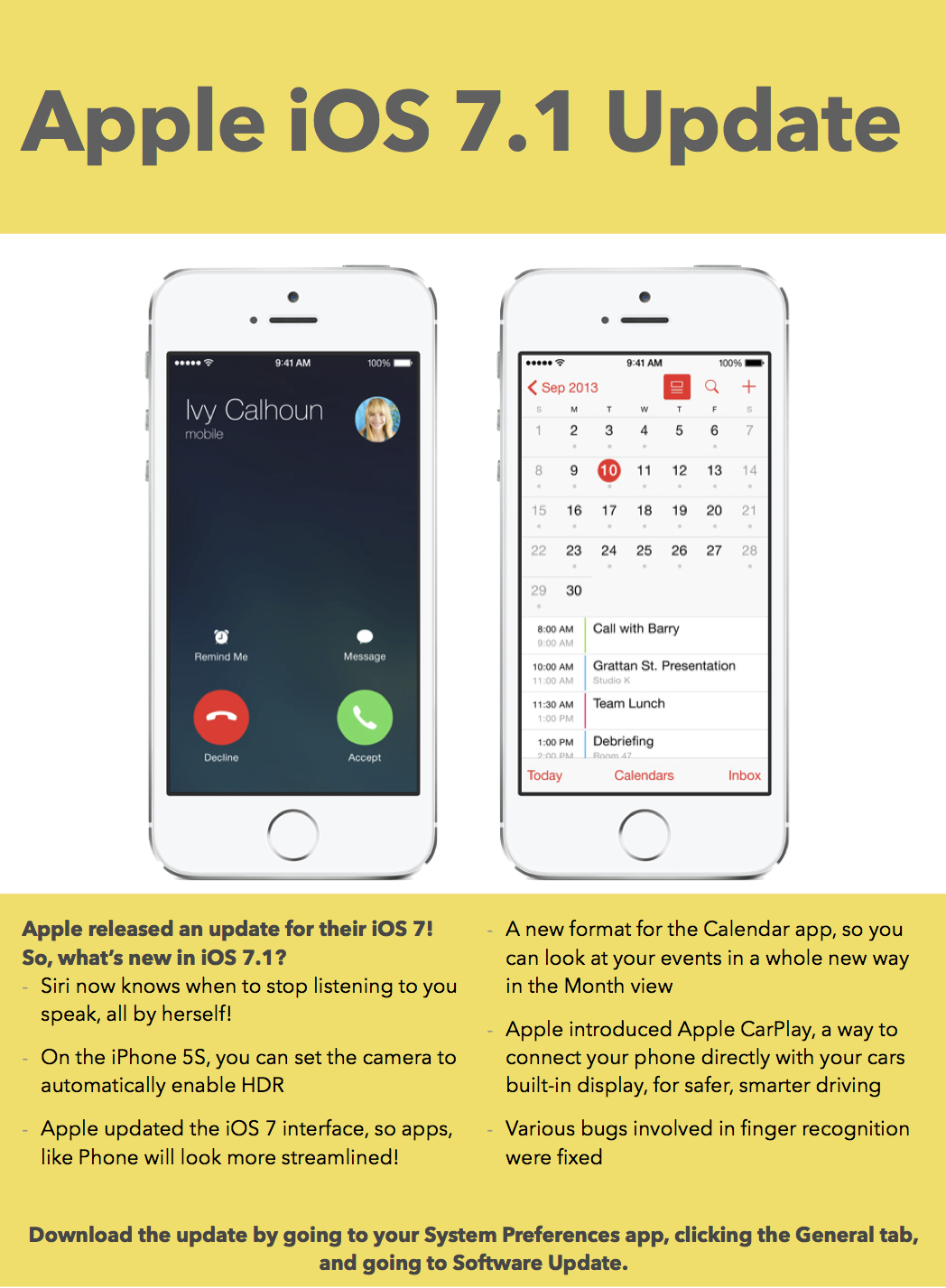
The 10.9.2 update repairs or patches minor hic-ups and more which are listed below:
§ Adds the ability to make and receive FaceTime audio calls
§ Adds call waiting support for FaceTime audio and video calls
§ Adds the ability to block incoming iMessages from individual senders
§ Includes general improvements to the stability and compatibility of Mail
§ Improves the accuracy of unread counts in Mail
§ Resolves an issue that prevented Mail from receiving new messages from certain providers
§ Improves AutoFill compatibility in Safari
§ Fixes an issue that may cause audio distortion on certain Macs
§ Improves reliability when connecting to a file server using SMB2
§ Fixes an issue that may cause VPN connections to disconnect
§ Improves VoiceOver navigation in Mail and Finder
§ Improves VoiceOver reliability when navigating websites
§ Improves compatibility with Gmail Archive mailboxes
§ Includes improvements to Gmail labels
§ Improves Safari browsing and Software Update installation when using an authenticated web proxy
§ Fixes an issue that could cause the Mac App Store to offer updates for apps that are already up to date
§ Improves the reliability of diskless NetBoot service in OS X Server
§ Fixes braille driver support for specific HandyTech displays
§ Resolves an issue when using Safe Boot with some systems
§ Improves ExpressCard compatibility for some MacBook Pro 2010 models
§ Resolves an issue which prevented printing to printers shared by Windows XP
§ Resolves an issue with Keychain that could cause repeated prompts to unlock the Local Items keychain
§ Fixes an issue that could prevent certain preference panes from opening in System Preferences
§ Fixes an issue that may prevent migration from completing while in Setup Assistant
As you can see from this list above, improvements to many features and minor issues has been addressed with this new patch.
We feel it is advisable to take a moment to update your Mac as soon as you get a moment.